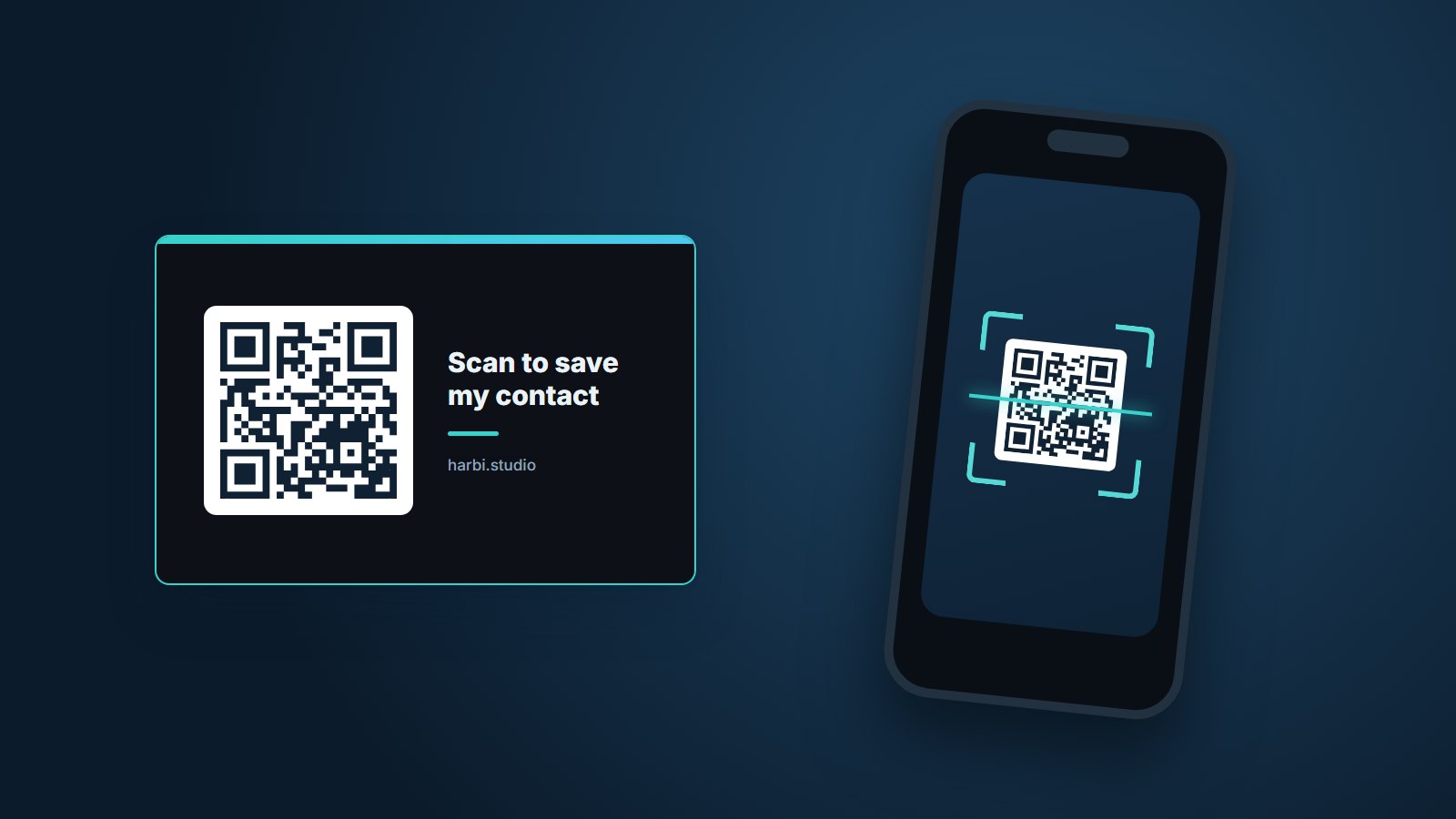
QR codes have become part of everyday life: menus, parking meters, payment terminals. On a business card they can be genuinely useful, or they can be a black square that nobody ever scans. The difference comes down to three questions: where the code leads, how it is printed and whether anyone has a reason to scan it.
When a QR code helps
A QR code earns its place when it does something the printed text can't. Good uses include:
- Saving your contact in one step. A code that adds your name, number and email to the reader's phone saves them typing and saves you from typos.
- Showing work. A photographer, architect or designer can link to a portfolio that no card could hold.
- Taking an action. Booking an appointment, opening a menu, starting a WhatsApp chat or leaving a review.
- Reaching a long address. A detailed map location or a long web address is easier to scan than to type.
When it just sits there
A QR code adds little when it leads to the same website already printed in large letters on the card, or to a generic home page where the reader has to search for what they wanted. It also fails when it leads to a page that loads slowly on mobile, isn't in the reader's language or, worst of all, no longer exists.
Before adding a code, finish this sentence: "Scan this to…". If you can't finish it with something specific, the card is better without it.
Point it at something you control
Cards last for months or years. The page behind the code must still work long after you print it. Prefer a link on your own domain, such as yourcompany.com/card, that you can redirect later if things change, rather than a link that depends on a third-party service which might expire.
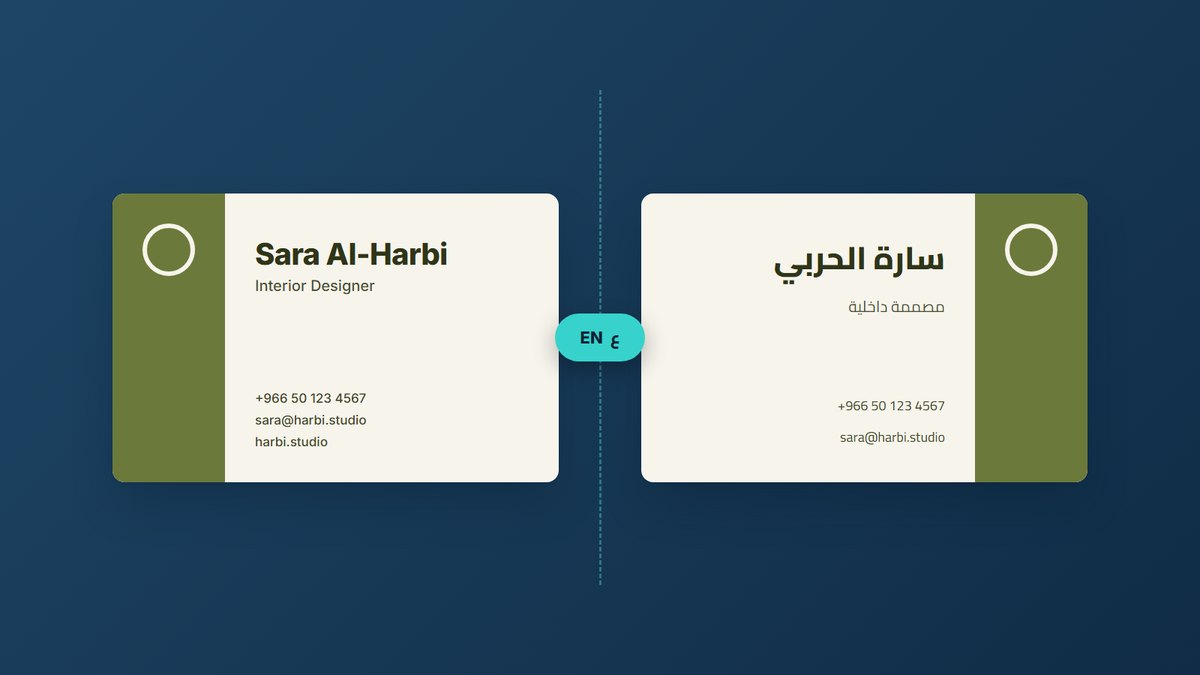
Make sure the destination is designed for phones, loads quickly and matches the language of the card. If the card is bilingual, the page should be too, or at least offer a clear language switch.
Print it so it actually scans
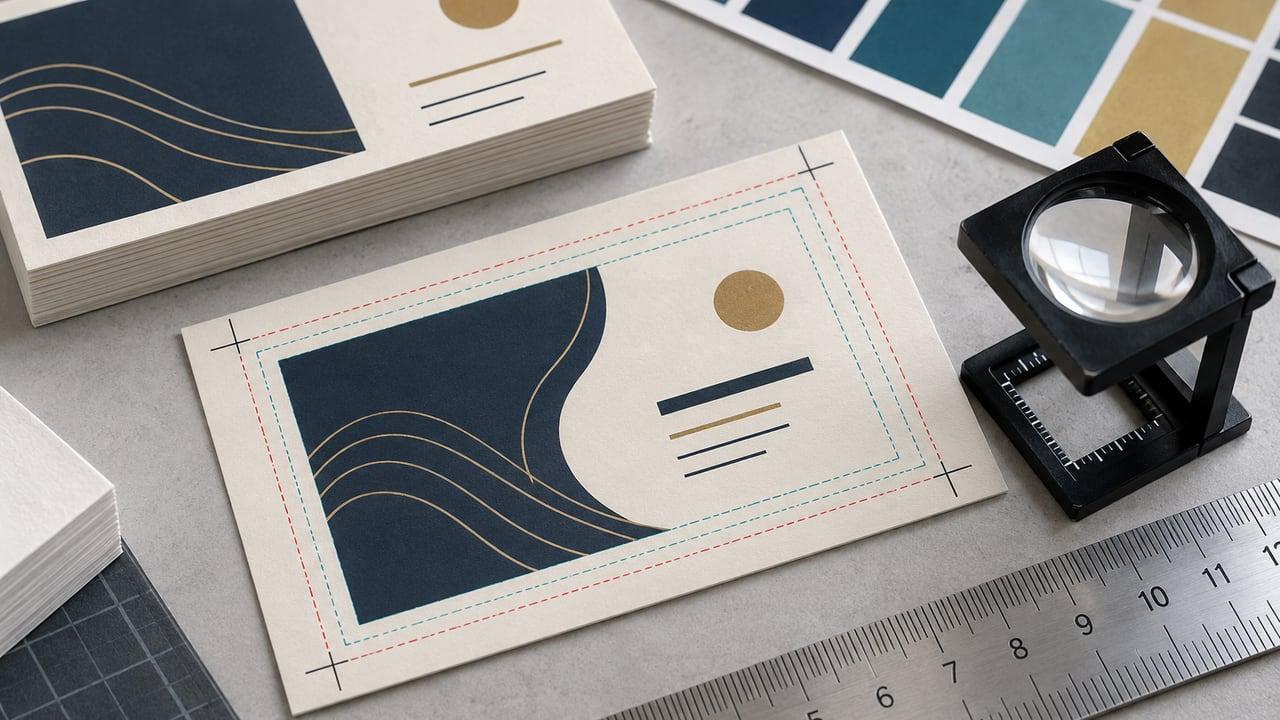
Most scanning problems come from printing, not from the code itself:
- Size: keep the code at least 2 × 2 cm. Smaller codes may still scan, but not reliably under poor light or with older phones.
- Quiet zone: leave a clear margin around the code, ideally the width of four of its small squares. Text or patterns touching the code confuse scanners.
- Contrast: dark code on a light background works best. Light-on-dark and low-contrast colour combinations often fail.
- Finish: very glossy or metallic finishes can reflect light into the camera. Matte paper is more reliable.
- Short links: the shorter the link, the simpler the pattern and the easier it is to scan when printed small.
Always test the printed proof, not just the screen, with at least two different phones before ordering the full run.
Tell people what they get
A small label next to the code makes it much more likely to be scanned: "Scan to save my contact", "See our portfolio" or "Book a visit". Without a label, people have to guess, and most won't bother.
Add a QR code in the editor
In BrandEra you can add a QR code to any card, place it on the front or the back and resize it freely. Many of our templates already reserve space for one on the back. Choose a design, add your link, and export a print-ready PDF, then test the printed card with your phone before you hand it out.